Hello all! We’ve been streaming in our condo for a couple months now and it’s been working fairly well. We had a couple folks ask us how we’re doing it and I wanted to give out some of the details. I was hoping to write a more in-depth guide but I haven’t had much time, so lemme know if you’d like some more details.
This isn’t the easiest thing to set up but it’s doable. The latency is like 3 seconds from our stream to the client, which is good enough to play Jackbox games like Drawful with extended timers. We also have a pass-through, so we’re able to see the output in realtime. You could probably tweak your settings to reduce this but there’s just a lot to test out.
Little background
The media player/browser in TU supports webm and can handle HTTP streams. I don’t believe it supports HLS or other streaming formats, so we’re limited to sequentially sending frames over a socket. This means the host is setting the bitrate to a fixed value (no adaptive streaming) and folks that use cellular or satellite internet will likely drop out occasionally.
We’re using a tool called Icecast2 to nicely handle multiple clients and using ffmpeg to convert (transcode) to webm format. Icecast is mostly used for internet radio stations but since it supports EBML, it can handle broadcasting webm too. Both of these are considered free software and are available for both Windows/Linux/Mac devices.
Live streaming can be a pain to setup, but once you get it working and fine-tuned, it’s quick to start it up.
Our setup
The setup looks like this:
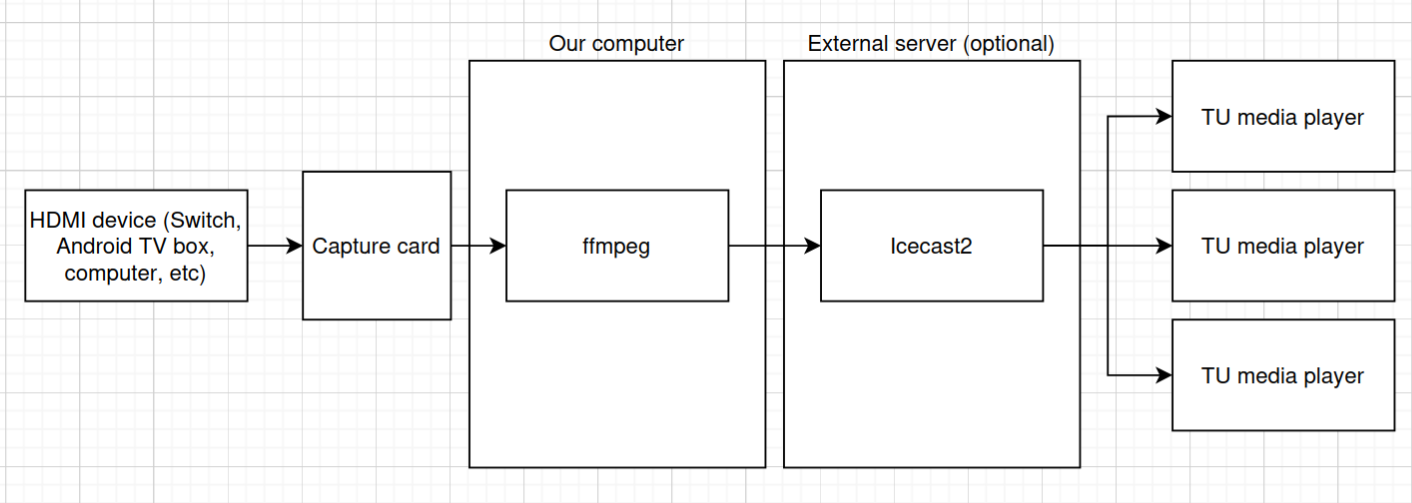
We have an external server that we’re using to actually host the stream, but you could definitely do this on your own computer or on the same computer you’re running ffmpeg on. Our internet had miserable upload speeds when we set this up, so we got a cheapo VPS to host the stream. (We previously had 15 Mbit/s upload speeds, and we transcode to 3Mbit/s, so we could at most support 4 other people. With the VPS, it’s basically unlimited).
We snagged a used Elgato HDMI capture card but you should be able to stream directly from your monitor using ffmpeg (using gfxcapture or DirectShow on Windows or x11grab on Linux). Read more: ffmpeg docs on desktop capture
Icecast2 can be installed from their website or using your package manager. You should install 2.5.0 and above. To set it up, I would recommend reading the latest Icecast docs, setting your admin & source user/password, then basically using the default settings. Our queue-size is set to 256k and burst size is 64k, which works fine for most folks. Adjusting these will change the latency between you and your client streams, but it comes at a cost of stability. And you need to remember this is a single tcp socket with no auto reconnection mechanism on the client side.
ffmpeg can take some time to setup, but I’ll include a good starting point. ffmpeg is what takes your video capture device, reads the video stream and decodes it, then re-formats it to webm and does some compression. It also handles streaming to Icecast2’s format (HTTP basically). There are like thousands of options for ffmpeg and it can take a while to fine-tune it so it suites your video well. The arguments to ffmpeg are basically structured like: ffmpeg [global opts] [input options] -i [input source] [output options] [output destination]. The ffmpeg docs are really great so I would recommend reading through some of it.
The command that works well for us is:
ffmpeg -use_wallclock_as_timestamps 1 -thread_queue_size 1024 -f dshow -rtbufsize 2G -i video="Game Capture HD60 S":audio="Game Capture HD60 S Audio" -c:v libvpx -b:v 4M -maxrate 4M -bufsize 5M -crf 10 -deadline realtime -cpu-used 8 -threads 8 -slices 8 -lag-in-frames 0 -static-thresh 1000 -g 60 -c:a libopus -b:a 128k -ar 48000 -cluster_size_limit 2M -cluster_time_limit 2100 -af "volume=0.5,aresample=async=1" -fps_mode cfr -f webm -content_type video/webm -fflags nobuffer icecast://<username>:<password>@<icecast host>:8000/<source name>.webm
or breaking this down:
| parameter | description |
|---|---|
| -use_wallclock_as_timestamps 1 | uses the system clock to sync the video and audio stream instead of relying on the input stream. This helps with the audio and video staying in sync |
| -thread_queue_size 1024 | might not be needed for you, but this helps when our elgato sometimes flips out |
| -f dshow | forces direct show format on input (windows only) |
| -rtbufsize 2G | sets the realtime data can ffmpeg capture? 2GB on our system works well |
| -i video=“Game Capture HD60 S”:audio=“Game Capture HD60 S Audio” | this is where you specify your input devices |
| -c:v libvpx | sets the video codec to use libvpx (vp8) |
| -b:v 4M | sets bitrate to 4Mbit |
| -maxrate 4M | sets max rate to 4Mbit as well - this is using variable bit rates, so you can increase these values |
| -bufsize 5M | sets buffer size to 5Mbit |
| -crf 10 | sets quality (crf=constant rate factor) to an arb 10 - read the docs on this one |
| -deadline realtime | tells libvpx you want to reduce the latency as much as possible for realtime streaming |
| -cpu-used 8 | uses 8 cpus |
| -threads 8 | uses 8 threads |
| -slices 8 | how many chunks to divide a frame into |
| -lag-in-frames 0 | how much can ffmpeg look ahead? increases latency with higher values |
| -static-thresh 1000 | lower values = more sensitive to motion, higher values = treat more stuff as static - used for compression |
| -g 60 | how many frames before a keyframe |
| -c:a libopus | audio codec |
| -b:a 128k | audio bitrate |
| -ar 48000 | sample rate |
| -cluster_size_limit 2M | |
| -cluster_time_limit 2100 | |
| -af “volume=0.5,aresample=async=1” | reduces volume by 0.5 and audio sync adjustment |
| -fps_mode cfr | constant frame rate |
| -f webm | format |
| -content_type video/webm | content type to icecast |
| -fflags nobuffer | |
| icecast://:@:8000/ |
your icecast host |
In the media player, your stream must end in webm. I don’t think the TU player reads the content-type but instead relies on the extension. The URL to enter into the media player will be something like http://example.com:8000/mystream.webm
More links:
Pitfalls:
- Reverse proxying through nginx or similar is not great with Icecast and doesn’t seem to be recommended by their devs. I tried this originally because I only wanted to expose the stream endpoint and handle TLS outside of Icecast, but it tended to drop the connection after a while despite nginx being config’d with a long/inf timeout.
- HTTPS/TLS is finicky in Icecast - so I’m limited to regular HTTP. It’s easy to setup Icecast with Let’s Encrypt but it tends to drop the connection randomly, both clients and ffmpeg-side, and I haven’t really dove into why this happens. I dunno if it’s an underlying library that’s doing it or if the error is happening elsewhere
- TU doesn’t auto reconnect to the stream. So if the stream breaks for a user, you’ll need to ask them to press Q and reload the video OR you can re-queue the video in the video player and skip to it. I added a TU suggestion to auto reconnect here.
- The media player will stop at 3 hours. Just queue up another stream in the TU media player.
- I’ve tried to setup a stream from OBS using the ‘Recording’ feature. But it doesn’t seem to support vp8 (only vp9) out-of-box, so I tried copying over some shared libs. But even then, it was complaining about some invalid params despite using the default settings. If you get this working, feel free to post it below!